Why Your Computer Overheats and How to Fix It
Computer overheating is one of the most common hardware issues that can lead to performance problems, unexpected shutdowns, and even permanent damage. Whether you’re gaming, working, or simply browsing, understanding why your computer overheats and how to prevent it is crucial for maintaining your device’s health and longevity.
Common Signs Your Computer is Overheating
Before diving into solutions, it’s important to recognize the warning signs:
- Loud fan noise: Your cooling fans running at maximum speed constantly
- Hot to touch: The bottom of your laptop or PC case feels unusually hot
- Sudden shutdowns: Computer turns off unexpectedly to protect internal components
- Performance throttling: Noticeable slowdowns during intensive tasks
- Screen artifacts: Visual glitches or distorted graphics
- BIOS warnings: Temperature alerts when booting up
If you’re experiencing any of these symptoms, your computer may be running too hot and needs immediate attention.
Top 5 Causes of Computer Overheating
1. Dust and Debris Accumulation
The Problem: Dust is the #1 enemy of computer cooling systems. Over time, dust accumulates inside your computer, clogging air vents and coating fan blades, heat sinks, and other components.
The Impact: Blocked airflow prevents heat from escaping, causing internal temperatures to rise dramatically. A laptop that hasn’t been cleaned in 2-3 years can have temperature increases of 15-25°C just from dust buildup.
The Solution:
- DIY: Use compressed air to blow out vents every 3-6 months (always power off first)
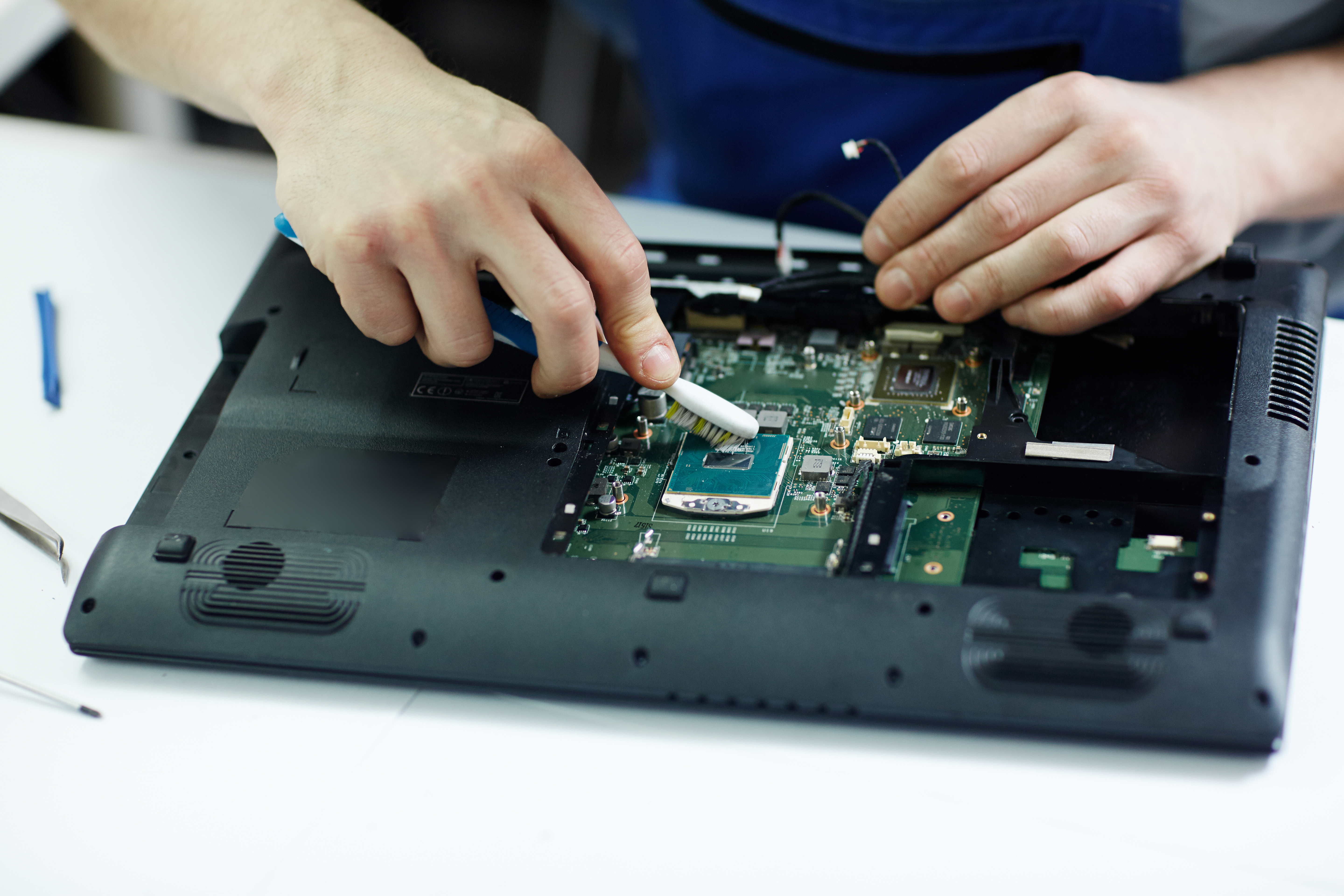
- Professional: Schedule annual internal cleaning for deep cleaning of heat sinks and fans
- Prevention: Keep your computer on hard surfaces, not beds or carpets
2. Failing or Inadequate Cooling Fans
The Problem: Cooling fans wear out over time. Bearings degrade, motors weaken, and eventually fans slow down or stop completely.
The Impact: Without proper fan function, heat cannot be expelled efficiently. A failed CPU fan can cause temperatures to reach critical levels (90-100°C) within minutes.
The Solution:
- Monitor fan speeds using free software like HWMonitor or SpeedFan
- Replace failing fans immediately (₹500-2000 depending on model)
- Consider upgrading to higher CFM (cubic feet per minute) fans for gaming PCs
3. Dried Thermal Paste
The Problem: Thermal paste (or thermal compound) sits between your CPU/GPU and their heat sinks, facilitating heat transfer. Over time, this paste dries out and loses effectiveness.
The Impact: Poor heat transfer causes processors to run 10-20°C hotter than normal, leading to performance throttling and reduced lifespan.
The Solution:
- Reapply thermal paste every 2-3 years for desktops
- Laptops should have thermal paste replaced every 3-4 years
- Use quality thermal paste (Arctic MX-4, Noctua NT-H1)
- Professional tip: Improper application can make things worse—consider professional service if inexperienced
4. Blocked Air Vents
The Problem: Using laptops on soft surfaces like beds, couches, or laps blocks intake and exhaust vents. Cluttered PC cases or external obstructions have the same effect.
The Impact: Restricted airflow creates an oven-like environment inside your computer, with nowhere for hot air to escape.
The Solution:
- Always use laptops on hard, flat surfaces
- Invest in a laptop cooling pad with additional fans (₹500-1500)
- For desktops, ensure at least 10-15cm clearance around all vents
- Cable management: Organize internal cables to improve airflow
5. High Ambient Temperature
The Problem: Operating computers in hot environments (direct sunlight, closed rooms without AC, near heat sources) raises baseline temperatures.
The Impact: If the incoming air is already 35-40°C, your cooling system starts at a disadvantage and struggles to maintain safe operating temperatures.
The Solution:
- Position computers away from windows and direct sunlight
- Ensure room ventilation or air conditioning during hot months
- Use desk fans to improve air circulation around the computer
- Close resource-heavy applications during peak heat hours
Immediate Steps to Cool Down an Overheating Computer
If your computer is currently overheating:
- Shutdown immediately if temperatures exceed 90°C
- Move to a cooler location with better ventilation
- Elevate laptops using a stand or books to improve airflow underneath
- Close unnecessary programs to reduce processor workload
- Clean visible vents with compressed air or a soft brush
- Check Task Manager (Windows) or Activity Monitor (Mac) for programs consuming high CPU/GPU
Long-term Prevention Strategies
Regular Maintenance Schedule
Create a computer maintenance calendar:
- Monthly: Check for dust in visible vents, monitor temperatures
- Quarterly: Clean external vents with compressed air
- Annually: Professional internal cleaning and thermal paste inspection
- Every 2-3 years: Thermal paste replacement
Temperature Monitoring
Install monitoring software to track temperatures:
- HWMonitor (Free, Windows)
- Core Temp (Free, Windows)
- iStat Menus (Mac, paid)
- MSI Afterburner (Free, for GPU monitoring)
Safe Temperature Ranges:
- CPU idle: 30-50°C
- CPU under load: 60-80°C
- GPU idle: 30-45°C
- GPU under load: 65-85°C
Anything consistently above these ranges indicates a cooling problem.
Hardware Upgrades
For chronic overheating issues:
- Laptop cooling pads: ₹500-2000, can reduce temperatures by 5-10°C
- Additional case fans: ₹300-1500 per fan
- Aftermarket CPU coolers: ₹1500-8000, much better than stock coolers
- Liquid cooling systems: ₹5000-15000+, for high-performance builds
When to Seek Professional Help
Some overheating issues require expert intervention:
- Disassembly required: Laptops need special care to avoid warranty voidance
- Thermal paste application: Incorrect application can worsen problems
- Fan replacement: Component-specific fans need proper compatibility
- Persistent issues: Ongoing problems despite basic troubleshooting
- Physical damage: Warped heat sinks, damaged fans, or bent fins
How QuickTech Pro Can Help
At QuickTech Pro, we specialize in diagnosing and fixing overheating issues:
Remote Diagnosis (₹500):
- Temperature monitoring and analysis
- Software optimization to reduce heat generation
- Fan curve adjustment and driver updates
Ship-in Repair Service:
- Complete internal cleaning and dust removal
- Thermal paste replacement with premium compounds
- Fan testing and replacement if needed
- Heat sink inspection and refurbishment
- 30-day warranty on all cooling repairs
What to Expect:
- Ship your device to our Bangalore service center
- Receive detailed diagnosis report within 24 hours
- Approve repair quote before we proceed
- Get your computer back running cool in 3-5 days
Conclusion
Computer overheating is a serious issue that shouldn’t be ignored. What starts as occasional slowdowns can escalate to hardware failure if left untreated. By understanding the causes, recognizing the symptoms, and taking preventive measures, you can keep your computer running cool and extend its lifespan significantly.
Remember: Prevention is always cheaper than repair. Regular maintenance costs a fraction of what you’d pay to replace heat-damaged components.
Need Help Right Now?
If your computer is overheating and you need immediate assistance:
- Remote Support starting at ₹500 — Book Now
- Ship-in Repair with free diagnosis — Contact Us
- Have questions? Chat with us on WhatsApp
Don’t wait until it’s too late. An overheating computer today could mean expensive hardware replacements tomorrow. Let QuickTech Pro keep your system running cool and efficient.
Last updated: February 12, 2026 | Written by the QuickTech Pro Team
QuickTech Pro Team
Expert computer repair technicians sharing practical tips to keep your devices running smoothly. Based in Bangalore, serving clients worldwide via remote support.