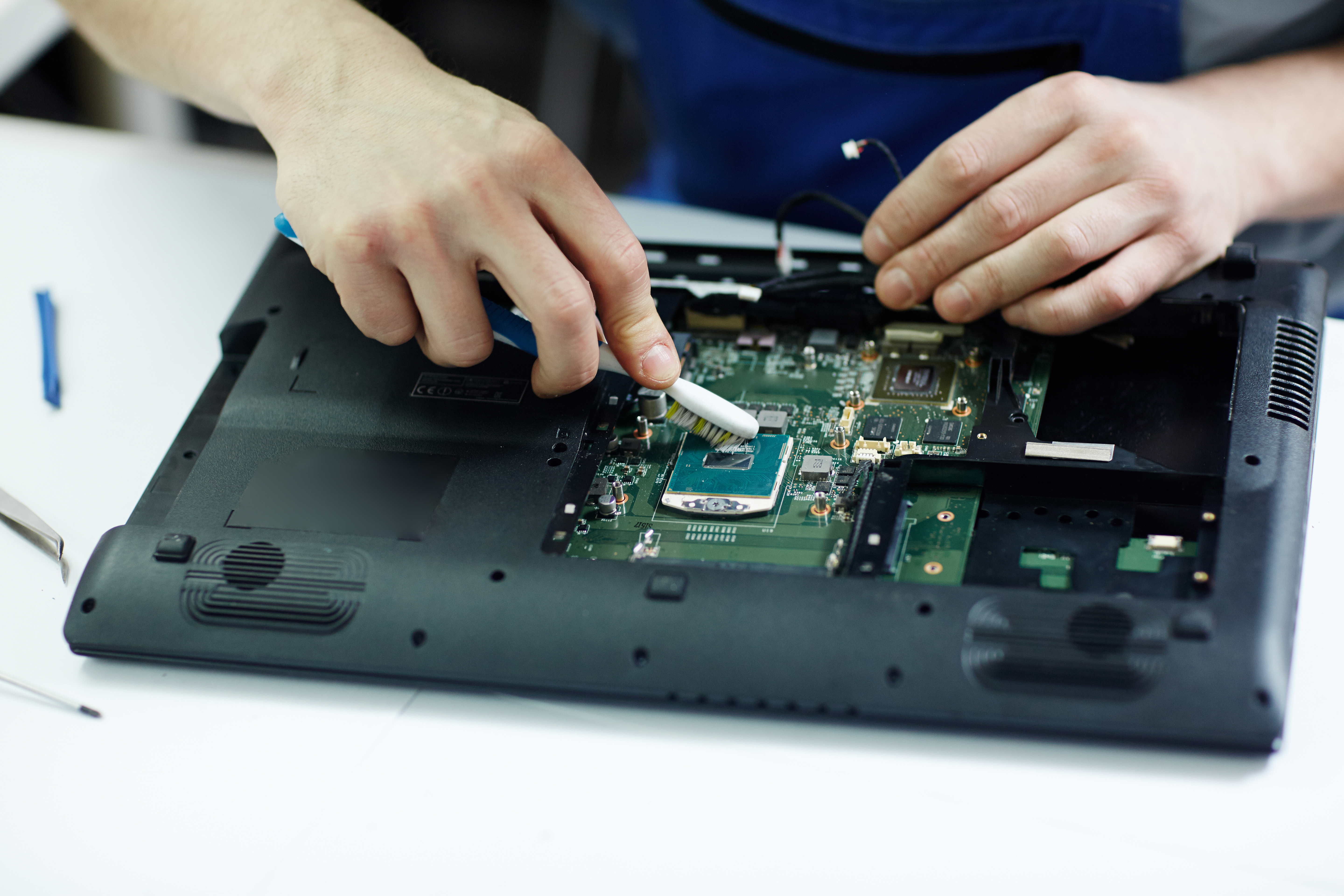
Top 5 Signs Your Laptop Needs Professional Repair
Your laptop communicates problems before it fails completely. Recognizing these warning signs early can save you from data loss, expensive component replacements, and hours of frustration.
Here are the five most critical signs that your laptop needs professional attention — and what a technician actually does to fix each one.
1. Constant Overheating
If your laptop gets uncomfortably hot during normal use (web browsing, documents), something is wrong. Occasional warmth during heavy tasks is normal; persistent heat is not.
Warning Signs
- Fan runs at full speed constantly
- Laptop shuts down unexpectedly during use
- Bottom of the laptop is too hot to touch
- Performance drops dramatically after 10-15 minutes of use
Why It Matters
Excessive heat damages internal components over time. The CPU and GPU will thermal throttle (slow down to prevent damage), which explains the sluggish performance. Prolonged overheating can permanently damage the motherboard.
What a Professional Does
A technician will disassemble the laptop, clean accumulated dust from heat sinks and fans, replace dried thermal paste with fresh compound, and test thermal performance under load. In some cases, the fan motor itself may need replacement.
2. Frequent Blue Screens (BSOD)
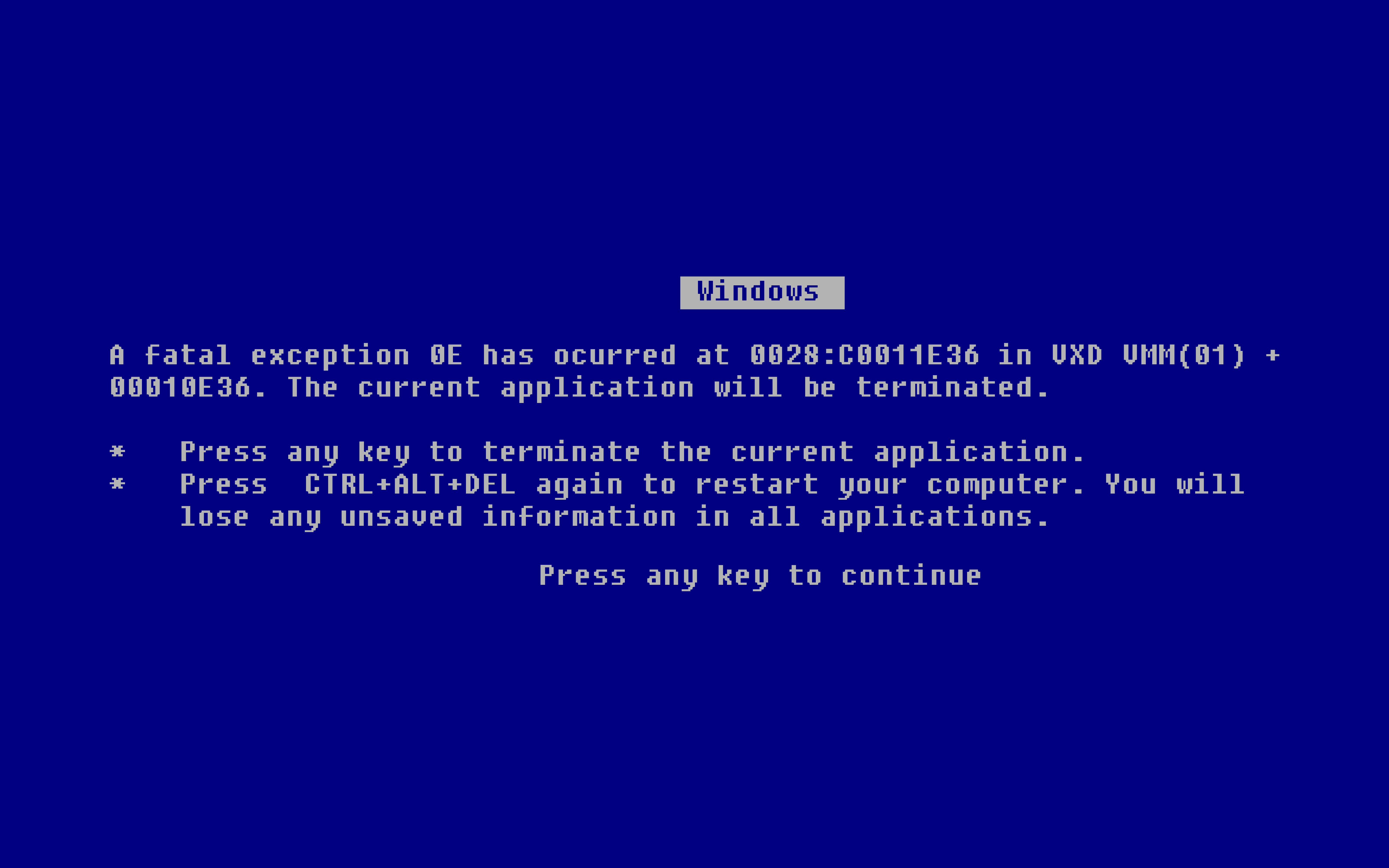
The dreaded Blue Screen of Death isn’t just an annoyance — it’s Windows telling you something is seriously wrong. Occasional BSODs might be a software glitch, but frequent ones indicate a deeper problem.
Common BSOD Error Codes
- CRITICAL_PROCESS_DIED — System file or driver corruption
- KERNEL_DATA_INPAGE_ERROR — Failing hard drive or bad RAM
- IRQL_NOT_LESS_OR_EQUAL — Faulty driver or hardware conflict
- MEMORY_MANAGEMENT — RAM failure
Why It Matters
Each BSOD forces an improper shutdown, which can corrupt your files and operating system. The underlying cause (failing RAM, dying drive, corrupt drivers) will only get worse without intervention.
What a Professional Does
We analyze crash dump files to identify the exact error source, run hardware diagnostics to test RAM and storage integrity, update or roll back problematic drivers, and repair system files. If hardware is failing, we’ll identify the exact component and recommend replacement.
3. Unusually Slow Performance
If your laptop takes minutes to boot, applications freeze regularly, or simple tasks feel sluggish, don’t just “live with it.” Performance degradation almost always has a fixable cause.
Common Culprits
- Failing hard drive — Mechanical drives develop bad sectors over time
- Insufficient RAM — Modern software is memory-hungry
- Malware infection — Background processes consuming resources
- Bloated startup — Too many programs launching at boot
- Fragmented drive — HDD-specific problem that slows read/write
Quick Self-Check
Press Ctrl + Shift + Esc to open Task Manager. If CPU, memory, or disk usage is consistently above 90% while doing basic tasks, your laptop needs attention.
What a Professional Does
We run comprehensive diagnostics to identify the bottleneck, remove malware, optimize startup programs, check drive health using S.M.A.R.T. data, and recommend whether a RAM upgrade or SSD swap would transform your experience. An SSD upgrade alone can make an old laptop feel brand new.
4. Strange Noises
Laptops should be relatively quiet. Unusual sounds are almost always a sign of hardware problems that will worsen without repair.
Sounds to Watch For
| Sound | Likely Cause | Urgency |
|---|---|---|
| Clicking or grinding | Failing hard drive | CRITICAL — Back up immediately |
| High-pitched whine | Fan bearing failure or coil whine | Medium — Schedule repair |
| Loud constant fan | Overheating / dust buildup | Medium — Clean soon |
| Buzzing or rattling | Loose component or speaker issue | Low — Monitor |
Why It Matters
A clicking hard drive can fail completely at any moment, taking all your data with it. Fan bearing failure leads to overheating. These are time-sensitive problems.
What a Professional Does
We identify the exact source of the noise, perform hard drive health checks and data backup if needed, clean or replace fans, and secure any loose components. If a drive is failing, we prioritize data recovery before it’s too late.
5. Battery Swelling or Rapid Drain
If your laptop’s battery drains in under 2 hours (when it used to last 5+), or if the trackpad or bottom casing appears to bulge outward, you have a battery problem.
Warning Signs
- Battery life decreased by more than 50%
- Trackpad feels “raised” or clicks unevenly
- Bottom of the laptop doesn’t sit flat
- Visible bulging or deformation of the casing
- Charging takes much longer than usual
Why It Matters
A swollen battery is a safety hazard — it can leak chemicals, catch fire, or even explode in extreme cases. Even a rapidly draining battery affects your productivity and reduces the laptop’s resale value.
What a Professional Does
We safely remove and dispose of the swollen battery, source a compatible replacement (genuine or quality third-party), install it, and calibrate it for optimal lifespan. We also check the charging circuit to ensure the new battery won’t suffer the same fate.
When to Get Professional Help
As a rule of thumb:
- 1 of these signs → Monitor and schedule a checkup
- 2+ signs → Get professional help soon
- Clicking drive, swollen battery, or constant BSODs → Stop using the laptop and contact us immediately
At QuickTech Pro, we diagnose most issues within a single remote support session starting at just ₹500. Book your session now or contact us on WhatsApp for immediate assistance.
QuickTech Pro Team
Expert computer repair technicians sharing practical tips to keep your devices running smoothly. Based in Bangalore, serving clients worldwide via remote support.